Catalog & Ingestion
Understand what OpenMetadata stores, then fill it: you'll build a small business database, then catalog it. By the end you'll have real, readable tables to explore.
The big picture — what you'll do
Three stages. The diagram shows where each one happens, so you always know where you are:
1.1 — The mental model
OpenMetadata catalogs the world as entities. An entity is any thing it tracks. The ones you'll meet first:
- Service — a source system: a database server, a BI tool, a pipeline tool. Everything hangs off a service. (e.g. "our Postgres warehouse")
- Database → Schema → Table → Column — the nested structure inside a database service.
- Dashboard, Chart — inside a BI service (Superset, Looker…).
- Pipeline — inside an orchestration service (Airflow, dbt…).
- Topic — inside a messaging service (Kafka).
Every entity has a unique Fully Qualified Name (FQN), e.g.
online_shop.shop.public.customers. Lineage, contracts, and the API all refer to
things by FQN. Its shape is always service.database.schema.table.
In DAMA-DMBOK terms, building this catalog is the Metadata Management knowledge area — capturing technical and business metadata about your data assets. The nested Database → Schema → Table → Column structure also reflects Data Modeling & Design.
On a brand-new instance the catalog has no tables yet — clicking Explore shows the Governance area (Glossaries, Tags, Tiers) instead. That's expected. We're about to fix it by building a database and ingesting it.
1.2 — How metadata gets in: ingestion
OpenMetadata doesn't magically know your databases. A connector (running in the Airflow ingestion container) connects to a source, reads its system catalog, and writes entities into OpenMetadata. This is ingestion. The types you'll meet:
| Workflow | What it pulls |
|---|---|
| Metadata | Schemas, tables, columns — the structure. The foundation (we use this one). |
| Usage | Who queries what, how often — drives popularity & some lineage. |
| Lineage | Parses query history / views to connect tables (Lesson 2). |
| Profiler | Row counts, null %, min/max — feeds data quality (Lesson 3). |
| dbt | Pulls models, tests, and descriptions from a dbt project. |
1.3 — Build the database we'll catalog
To ingest something, we first need a database. We'll create a small, relatable "Online Shop" — customers, products, orders — instead of cataloging OpenMetadata's own internal tables (which mean nothing to anyone).
A database is two things: (1) the data — a plain SQL file
you write (CREATE TABLE, INSERT), and (2) the engine
— PostgreSQL, the server software that runs it. Docker just downloads and starts that engine
for you. You write the data; Docker runs the engine. Nothing here is downloaded from the
internet except the PostgreSQL software itself.
You'll create one folder with two files, then start it. (If you're using the
provided lab, these already exist in openmetadata-lab/sample-db — but build them
yourself once; that's how you'll understand it.)
Do thisFile 1 — the engine (docker-compose.yml)
- Create a folder named
sample-db, and inside it a subfolder namedinit. - Inside
sample-db, create a file nameddocker-compose.ymlwith exactly this content:
services:
  shop_postgres:
    image: postgres:16
    container_name: shop_postgres
    environment:
      POSTGRES_USER: shop_user
      POSTGRES_PASSWORD: shop_pass
      POSTGRES_DB: shop
    ports:
      - "5433:5432"
    volumes:
      - ./init:/docker-entrypoint-initdb.d
      - shop_pgdata:/var/lib/postgresql/data
volumes:
  shop_pgdata:
What each part does:
image: postgres:16— the PostgreSQL software Docker downloads and runs.environment— the username, password, and database name created on first start.ports: "5433:5432"— reach this database on your machine at port 5433 (5432 is already taken by OpenMetadata's own Postgres).volumes— the first line mounts yourinitfolder into a special spot (see below) so your SQL runs automatically; the second keeps the data on disk.
Do thisFile 2 — the data (init/01_schema.sql)
Inside sample-db/init, create 01_schema.sql with this content. It's
ordinary SQL — create each table, insert a few rows, and define one view:
-- CUSTOMERS
CREATE TABLE customers (
    customer_id  SERIAL PRIMARY KEY,
    first_name   VARCHAR(50)  NOT NULL,
    last_name    VARCHAR(50)  NOT NULL,
    email        VARCHAR(120) NOT NULL UNIQUE,   -- personal data (PII)
    country      VARCHAR(50),
    created_at   DATE NOT NULL DEFAULT CURRENT_DATE
);
INSERT INTO customers (first_name, last_name, email, country) VALUES
('Marie', 'Dubois',  'marie.dubois@example.com', 'France'),
('John',  'Smith',   'john.smith@example.com',   'United States'),
('Lena',  'Schmidt', 'lena.schmidt@example.com', 'Germany'),
('Yuki',  'Tanaka',  'yuki.tanaka@example.com',  'Japan'),
('Paolo', 'Rossi',   'paolo.rossi@example.com',  'Italy'),
('Emma',  'Johnson', 'emma.johnson@example.com', 'United Kingdom');
-- PRODUCTS
CREATE TABLE products (
    product_id  SERIAL PRIMARY KEY,
    name        VARCHAR(100)  NOT NULL,
    category    VARCHAR(50)   NOT NULL,
    price       NUMERIC(10,2) NOT NULL
);
INSERT INTO products (name, category, price) VALUES
('Wireless Headphones', 'Electronics', 79.90),
('Cotton T-Shirt',      'Apparel',     19.50),
('Stainless Bottle',    'Home',        24.00),
('Running Shoes',       'Apparel',     89.00),
('Desk Lamp',           'Home',        34.90),
('Bluetooth Speaker',   'Electronics', 45.00);
-- ORDERS
CREATE TABLE orders (
    order_id     SERIAL PRIMARY KEY,
    customer_id  INT  NOT NULL REFERENCES customers(customer_id),
    order_date   DATE NOT NULL,
    status       VARCHAR(20)   NOT NULL DEFAULT 'completed',
    total_amount NUMERIC(10,2) NOT NULL
);
INSERT INTO orders (customer_id, order_date, status, total_amount) VALUES
(1, '2025-05-03', 'completed',  99.40),
(2, '2025-05-03', 'completed',  19.50),
(3, '2025-05-04', 'completed', 113.00),
(4, '2025-05-05', 'completed',  45.00),
(5, '2025-05-05', 'completed',  24.00),
(1, '2025-05-06', 'completed',  34.90),
(6, '2025-05-07', 'cancelled',  89.00);
-- ORDER ITEMS (which products are in each order)
CREATE TABLE order_items (
    order_item_id SERIAL PRIMARY KEY,
    order_id      INT NOT NULL REFERENCES orders(order_id),
    product_id    INT NOT NULL REFERENCES products(product_id),
    quantity      INT NOT NULL DEFAULT 1,
    unit_price    NUMERIC(10,2) NOT NULL
);
INSERT INTO order_items (order_id, product_id, quantity, unit_price) VALUES
(1, 1, 1, 79.90), (1, 2, 1, 19.50),
(2, 2, 1, 19.50),
(3, 4, 1, 89.00), (3, 3, 1, 24.00),
(4, 6, 1, 45.00),
(5, 3, 1, 24.00),
(6, 5, 1, 34.90),
(7, 4, 1, 89.00);
-- DAILY REVENUE: a VIEW (a saved query) built from orders
CREATE VIEW v_daily_revenue AS
SELECT order_date,
       COUNT(*)          AS orders_count,
       SUM(total_amount) AS revenue
FROM   orders
WHERE  status = 'completed'
GROUP  BY order_date
ORDER  BY order_date;
The official Postgres image runs any .sql file placed in its
folder /docker-entrypoint-initdb.d the first time it starts.
Your compose file mounts ./init into exactly that spot — so starting the
container also creates the tables and rows. You never run the SQL by hand.
Do thisStart the database
- Open PowerShell in the
sample-dbfolder. (Tip: in File Explorer, hold Shift, right-click the folder, choose Open PowerShell window here.) - Run the command below.
- Check it started:
docker psshould listshop_postgres.
docker compose up -d
docker ps
The seed SQL only runs on the first start. To re-run it, wipe the storage:
docker compose down --volumes, then docker compose up -d.
1.4 — What you just built
Here's the shop, visually. Five tables that reference each other, plus a view derived from
orders — the relationships you'll see as lineage in Lesson 2:
1.5 — Catalog it in OpenMetadata
The database is running. Now we point OpenMetadata at it and run a metadata ingestion — stage 2 of the big picture.
Do thisAdd the service
- Settings (gear icon) → Services → Databases → Add New Service.
- Pick Postgres. Name it
online_shop. Click Next. - Connection: Host and Port
host.docker.internal:5433, Usernameshop_user, Passwordshop_pass, Databaseshop. Leave "Ingest All Databases" OFF — you've already named the one you want. - Test Connection → "partially successful" is fine (only the optional
pg_stat_statements/Usage check fails). Click Next → Set Default Filters (keep the defaults) → Save.
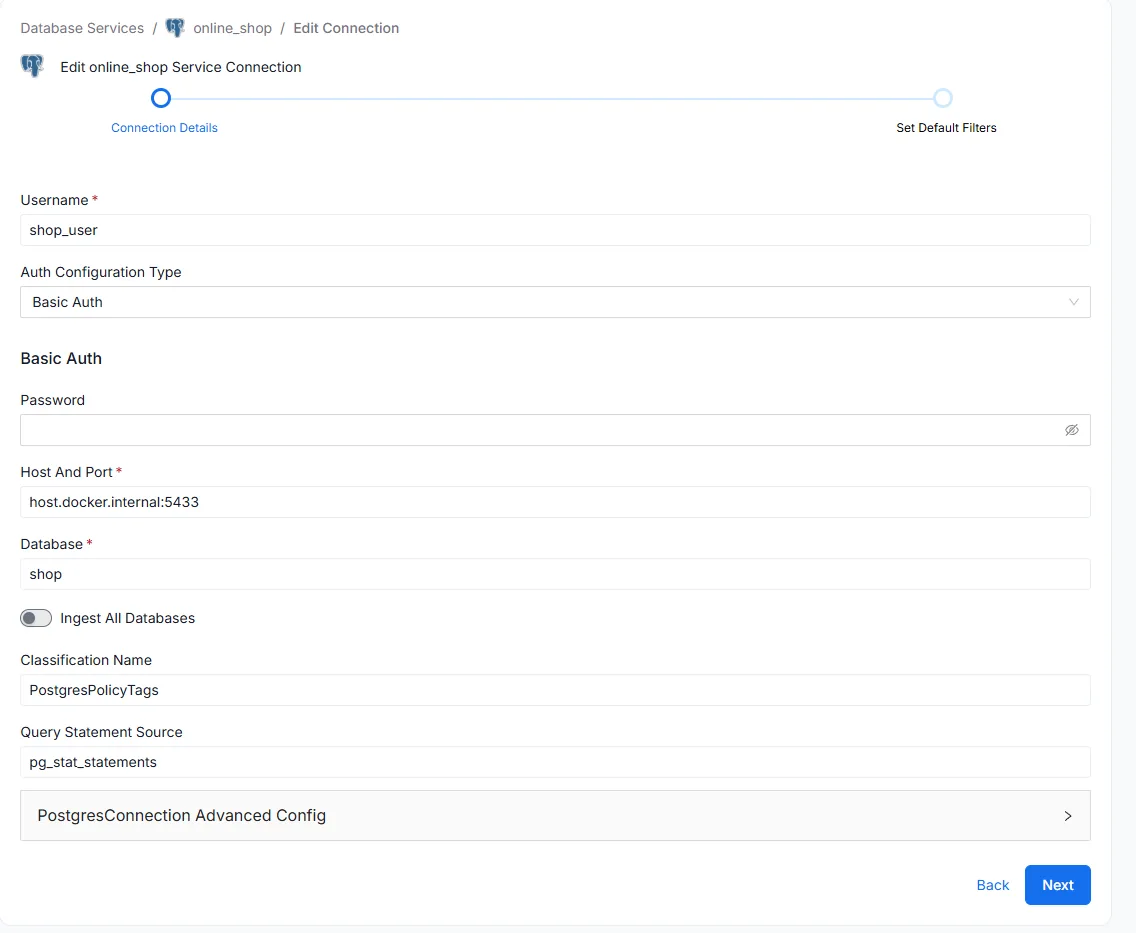
host.docker.internal:5433, shop_user, database shop, "Ingest All Databases" left off.In OpenMetadata 1.12+, saving a service triggers AutoPilot: it
auto-deploys and runs a Metadata agent (and a Usage one) for you. So you often
don't need to add an ingestion by hand — just wait ~30–60s and check the service
page. (The Usage agent will fail on pg_stat_statements — ignore it.)
Do thisConfirm the tables were cataloged
- On the
online_shopservice page, look at Total Data Assets — you should see Table: 5 (customers, products, orders, order_items, and the v_daily_revenue view). - If nothing ran automatically (older versions): open the Agents / Ingestions tab → Add Ingestion → Metadata → Deploy → Run.
- Explore → Databases →
online_shop. You'll see your tables — cataloged!
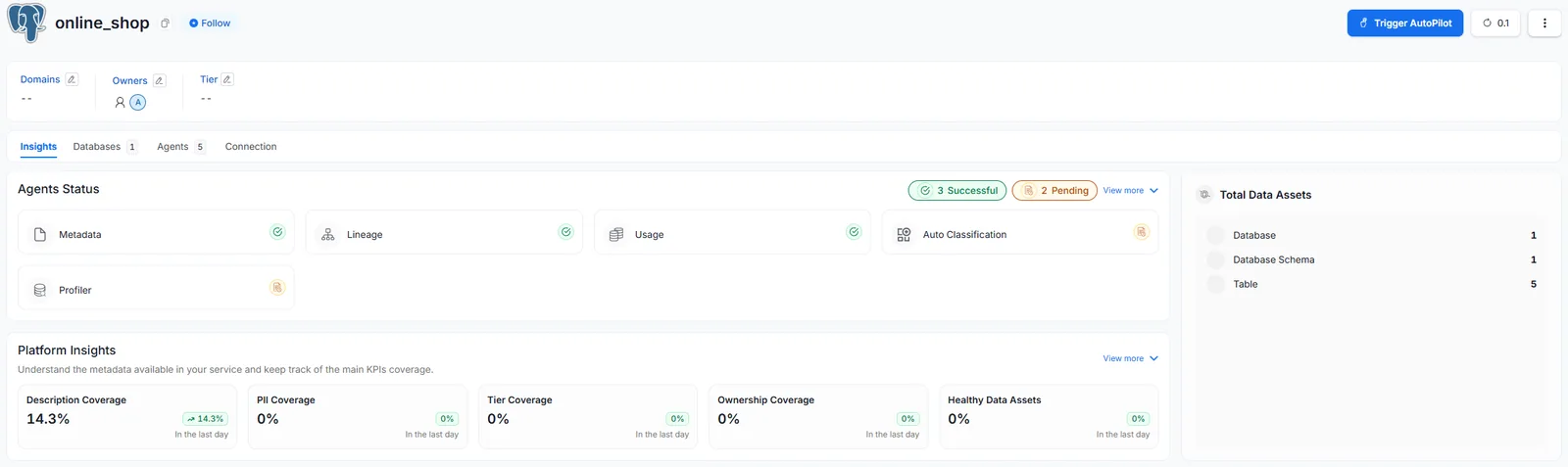
online_shop service shows Table: 5 — AutoPilot ran the Metadata agent for you.The host must be host.docker.internal:5433, not localhost
— OpenMetadata runs inside a container, so localhost would point at itself.
Also confirm shop_postgres is running (docker ps).
The ingestion connector opened a connection to your shop database, read its
information_schema, and created Table/Column entities in OpenMetadata. No rows of
data moved — only the structure. That's the whole game.
Harmless — ignore it. That message comes from the optional Usage workflow,
which reads query history from a Postgres extension (pg_stat_statements) our sample
database doesn't enable. The Metadata ingestion (tables & columns) still
succeeds, and Lesson 2's lineage uses the view definition, not query history. If your tables
appear in Explore, you're good.
Do thisFind your first FQN
- Open
online_shop→ thecustomerstable. Note its tabs: Schema, Sample Data, Lineage, Profiler — each a facet of the same entity. - Find the FQN: it's the breadcrumb at the very top —
online_shop / shop / publicthen the titlecustomers. Joined with dots that'sonline_shop.shop.public.customers— the shapeservice.database.schema.table. Click the small copy icon ⧉ next to the table name to copy it exactly.
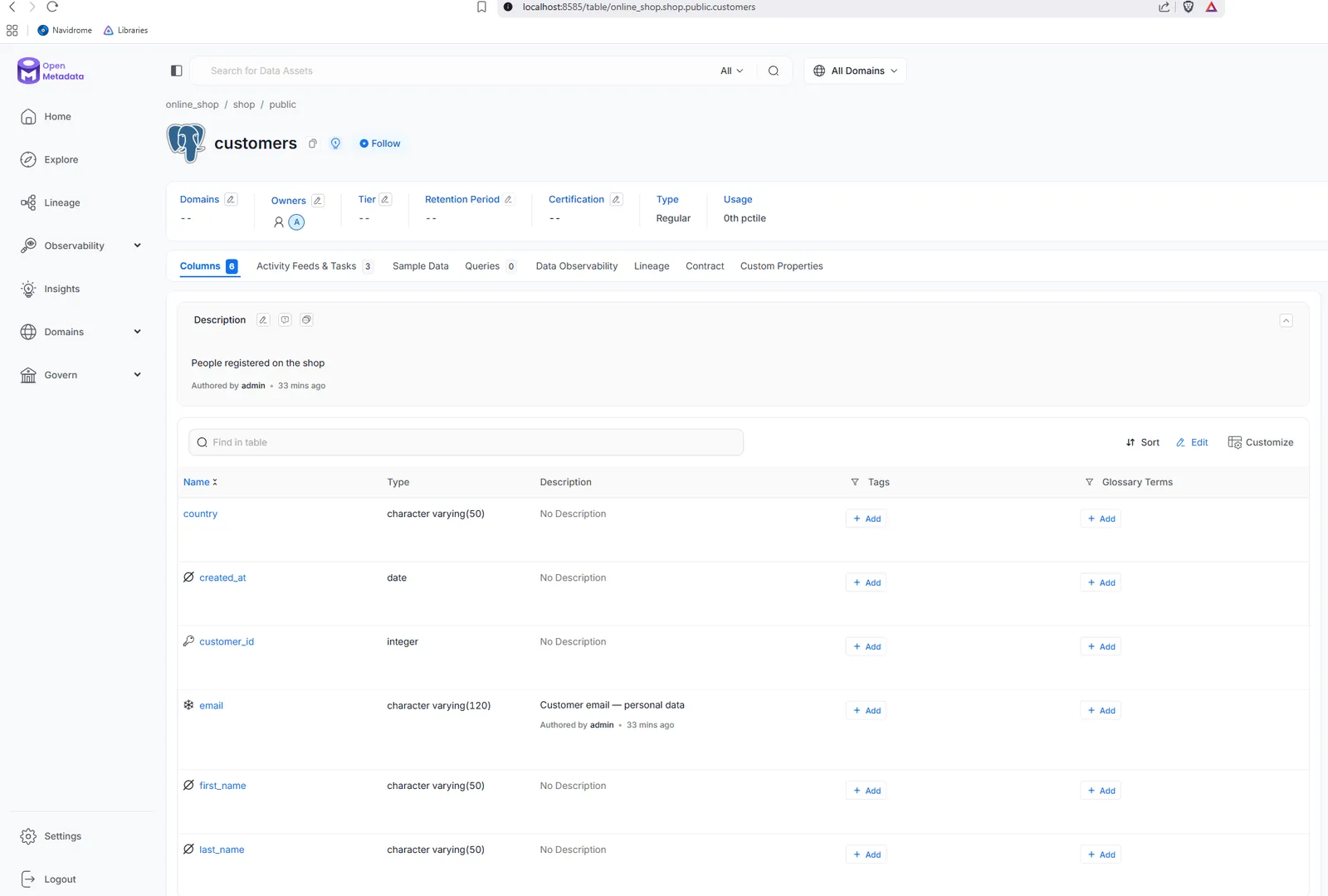
online_shop / shop / public + the table name is the FQN. The columns below were read from your database.Cataloging captured the structure. To also see the shape of the data — row counts, null rates, value distributions — run the profiler. This is the "profiling" part of exploring an asset, and it's what later feeds data quality (Lesson 3).
Do thisProfile the data
- On the
online_shopservice → Agents / Ingestions tab → Add Ingestion → Profiler → Deploy → Run. (AutoPilot may have queued one already — check first.) - When it succeeds, open the
customerstable → Profiler / Data Observability tab. You'll see the row count and per-column statistics. - Click the
emailcolumn: its Key Profile Metrics (null %, distinct, value count) are now filled in — they were empty before profiling ran.
1.6 — Make it yours
The catalog only earns its keep when humans enrich it.
Do thisEnrich the customers table
- Open
customersand add a description like "People registered on the shop". - Set yourself as Owner.
- In the Schema tab, describe the
emailcolumn (e.g. "Customer email — personal data"). We'll tag it as PII in Lesson 3. - Search that text in the top bar — Elasticsearch already indexed it. Search is the product.
Checkpoint
service.database.schema.table — here online_shop.shop.public.customers.