Get OpenMetadata running
Before you can learn the platform, you need your own copy of it running on your computer. This lesson walks you through it one step at a time. No prior Docker or command-line experience needed — just follow along.
Install two free tools (WSL 2 and Docker Desktop), then start OpenMetadata with a single command and log in. Plan for about 30 minutes, most of it waiting on downloads. We're on Windows here; Mac/Linux notes are included where they differ.
First, a 30-second glossary
A few words will keep coming up. Here's all you need to know about each for now:
| Word | What it means (plain version) |
|---|---|
| Docker | Software that runs other programs inside neat, self-contained boxes — so you don't have to install each piece by hand. |
| Container | One of those boxes: a packaged program with everything it needs to run. |
| WSL 2 | "Windows Subsystem for Linux." It lets Windows run Linux software. Docker Desktop needs it. |
| PowerShell | The Windows app where you type commands. Think of it as a text-based remote control for your PC. |
| localhost | Your own computer. A web address like http://localhost:8585 just means "a page running on this machine." |
What you're about to run
OpenMetadata isn't a single program — it's four small ones that work together. The good news: you won't start them by hand. Docker launches all four for you with one command. Here's the cast, just so the names aren't a mystery later:
| Container | What it does |
|---|---|
openmetadata_server | The main app — the website you'll click around in. |
openmetadata_postgresql | A database that stores all the catalog information. |
openmetadata_elasticsearch | The search engine behind the search bar. |
openmetadata_ingestion | A helper that pulls information in from your data sources (you'll use this in Lesson 1). |
OpenMetadata never holds your actual data. It holds information about your data — table names, owners, descriptions, where data comes from. Keep that distinction in mind; it explains almost everything in the lessons ahead.
Step 1 — Install WSL 2
Docker Desktop on Windows runs on top of WSL 2, so we install WSL first. This is a one-time setup.
Do thisInstall WSL 2
- Click the Start menu, type PowerShell, then right-click Windows PowerShell and choose Run as administrator. (Admin rights are required — see the note below if you skip this.)
- Type the command
wsl --installand press Enter. - It downloads WSL and Ubuntu (a version of Linux), then opens an Ubuntu window asking you to create a default Unix user account. Type a username, press Enter, then type a password twice. The password is invisible as you type — nothing appears on screen. That's normal, not a frozen keyboard. Remember this password.
- Restart your PC when it asks — this finishes the install.
- After restarting, open PowerShell again and type
wsl --status. It should say Default Version: 2. WSL is ready.
wsl --install
# after restarting your PC, check it worked:
wsl --status
That's Windows saying the command needs admin rights. Close PowerShell, reopen it with
Run as administrator (right-click → Run as administrator), and run
wsl --install again.
Update Windows first (Settings → Windows Update), then try again. Still stuck? Run
wsl --install -d Ubuntu. If WSL is already there but on version 1, run
wsl --set-default-version 2.
Step 2 — Install Docker Desktop
Docker Desktop is the app that will run OpenMetadata's four containers for you. It's free.
Do thisInstall Docker Desktop
- Go to docker.com/products/docker-desktop and click Download for Windows. (Choose AMD64 unless you know you have an ARM PC.)
- Open the downloaded installer. When it offers "Use WSL 2 instead of Hyper-V", leave it checked.
- Restart if it asks. Then open Docker Desktop from the Start menu and let it finish first-time setup.
- Wait until the little whale icon (bottom-right of the Docker window) says "Engine running." That means Docker is on.
- Open a fresh PowerShell window and run the two checks below.
docker --version
docker compose version
Each one should print a version number. If they do, Docker is installed and running — move on.
One of two things:
- Docker Desktop isn't running. Open it from the Start menu, wait for
"Engine running", then open a new PowerShell window and try again.
The
dockercommand only works once Docker Desktop has started. - It isn't installed yet. Do the steps above. And always open a new PowerShell window afterward — an already-open one won't see the new command.
Step 3 — Give Docker enough memory
OpenMetadata is hungry. If Docker has too little memory, it will start and then quietly fail — so set this before going further. How you set it depends on what Docker shows you:
Open Docker Desktop → Settings (gear icon) → Resources. You'll see one of two things — pick the matching case below.
Case A · You see Memory and CPU sliders
Simply drag Memory to at least 6 GB and CPUs to at least 4, then click Apply & restart. Done.
Case B · It says "resource limits are managed by Windows"
This is the WSL 2 backend — there are no sliders, because Windows controls the
memory through a small file named .wslconfig in your user folder. By default WSL 2
already uses up to ~50% of your RAM (often enough on a 16 GB+ PC), but let's set it explicitly
to be safe.
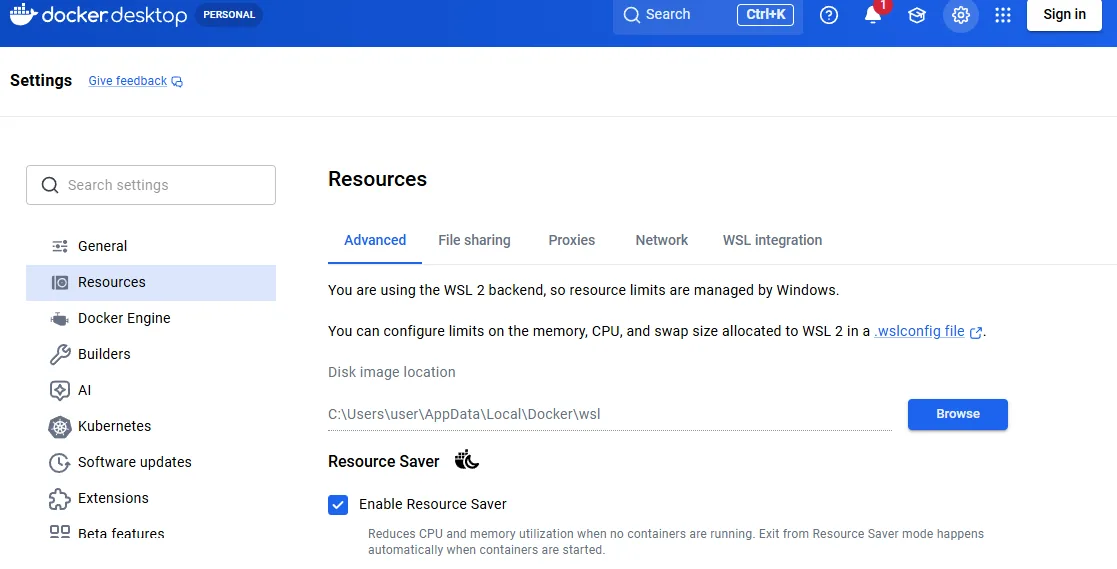
.wslconfig.Do thisSet memory via .wslconfig
- Open PowerShell (a normal window — admin not needed).
- Paste the command below and press Enter. It creates the file with 8 GB of memory and 4 processors.
- If your PC only has 8 GB of RAM total, change
8GBto6GBfirst, so Windows keeps enough for itself. - Run
wsl --shutdownto apply, then reopen Docker Desktop and wait for "Engine running."
# create the WSL memory settings file
@"
[wsl2]
memory=8GB
processors=4
"@ | Set-Content -Path "$env:USERPROFILE\.wslconfig" -Encoding ASCII
# apply the change
wsl --shutdown
Make sure you have about 10 GB of free disk space for the downloaded images.
Step 4 — Download and start OpenMetadata
Now the fun part. You'll move into the lab folder, run a small script that downloads OpenMetadata's setup file, and start everything with one command.
cd means "change directory" — go into a folder. The script then downloads the
official setup file, and docker compose ... up --detach starts all four
containers in the background.
cd "C:\path\to\openmetadata-lab"
.\scripts\get-openmetadata.ps1
docker compose -f docker-compose-postgres.yml up --detach
C:\path\to\openmetadata-lab is a placeholder — swap it for wherever you saved
the openmetadata-lab folder. Easy trick: open that folder in File Explorer, hold
Shift and right-click it, choose Copy as path, then paste it
after cd.
OptionalOn a Mac or Linux instead?
cd openmetadata-lab
bash scripts/get-openmetadata.sh
docker compose -f docker-compose-postgres.yml up --detach
We pick the Postgres version on purpose: it's the database style most common in real data work, and later you can even point OpenMetadata at this same database to watch it catalog itself. Don't worry about the details now.
The first start downloads several gigabytes, so it takes a few minutes. After that, the main app needs 2–4 minutes to warm up. You can watch progress with:
# list the running containers
docker ps
# follow the main app's startup messages (press Ctrl+C to stop watching)
docker compose -f docker-compose-postgres.yml logs -f openmetadata_server
When openmetadata_server shows as healthy in docker ps,
it's ready.
Step 5 — Open it and log in
Open a web browser and go to http://localhost:8585. Log in with the built-in admin account:
| What | Address | Username | Password |
|---|---|---|---|
| OpenMetadata (the app) | localhost:8585 | admin@open-metadata.org | admin |
| Airflow (the ingestion helper) | localhost:8080 | admin | admin |
Take the quick in-app tour when it offers — it's a 3-minute orientation. Then click Explore → Tables, open any table, and poke around its tabs. You don't need to understand it yet; just get a feel for the layout. That's the finish line for this lesson.
Everyday commands
You don't need these today, but keep them handy for next time you sit down:
# pause it (keeps all your data)
docker compose -f docker-compose-postgres.yml stop
# start it back up
docker compose -f docker-compose-postgres.yml start
# shut it down (still keeps your data)
docker compose -f docker-compose-postgres.yml down
# wipe everything and start fresh (deletes your data)
docker compose -f docker-compose-postgres.yml down --volumes
- Message about
Pool overlaps with other one on this address space→ rundocker network prune, then try starting again. - The server keeps restarting → almost always not enough memory. Raise Docker to 8 GB (Step 3) and retry.
port is already allocatedfor 8585 or 8080 → another program is using that address. Close it, or ask for help adjusting the setup file.
Nothing here is precious. If it gets messy, wipe it with the last command above and start over. Breaking things and resetting is part of learning.